




You press
W to peek around a corner in Counter-Strike, and your character stands frozen for half a second before shuffling awkwardly into crossfire. Or you’re typing an urgent Slack message, nothing appears on screen for three seconds, and suddenly forty letters blast across the monitor like a jammed printer spitting paper.
Keyboard delay—often called input lag—is maddening. It kills gaming clutches and grinds typing productivity to a halt.
Most generic troubleshooting guides tell you to “restart your PC” or “turn the power switch off and on.” Let’s skip the fluff. After bench-testing dozens of mechanical, optical, and wireless boards on our workbench, we found that keyboard delay usually boils down to three culprits: USB radio interference, hidden Windows accessibility settings, or firmware debounce lag.
Here is how to track down the root cause and eliminate keyboard delay for good.
The 30-Second Diagnostic: Hardware or Windows?
Before you tear your setup apart, run this fast test:
-
Restart your PC and repeatedly press
DelorF2to enter your motherboard’s BIOS/UEFI. - Use the arrow keys to navigate the menus and type numbers in any prompt.
- If the keys respond instantly in BIOS: Your keyboard hardware is completely fine. The lag is caused by Windows settings, background software, or driver conflicts. Jump to Fix 2.
- If the delay or missed keys happen inside BIOS too: You’re dealing with a physical connection issue, radio interference, port power starvation, or failing switches. Start with Fix 1.
1. Fix the 2.4GHz USB 3.0 Trap (Wireless Keyboards Only)
If you use a wireless keyboard with a 2.4GHz USB receiver dongle, this is the #1 culprit we see in the workshop.
Back in 2012, Intel published an engineering whitepaper documenting that USB 3.0 and USB-C ports emit broadband radio noise in the 2.4 GHz to 2.5 GHz spectrum. If your wireless dongle is plugged directly into a USB 3.0 port (usually colored blue) right next to an external hard drive, flash drive, or USB hub, the electrical noise literally drowns out your keyboard’s radio signal.
The Fix:
- Move the dongle to a legacy USB 2.0 port (the black ports on the back of your motherboard).
- Use a short USB extension dock to position the receiver within 12 inches (30 cm) of your keyboard, keeping it line-of-sight and away from metal chassis panels.
- Avoid plugging high-speed wireless dongles into unpowered passive USB splitters.
2. Turn Off Windows “Filter Keys” (The Silent Culprit)
Windows includes an accessibility feature called Filter Keys designed to ignore brief or repeated keystrokes. The problem? Windows 10 and 11 feature updates have an annoying habit of silently toggling this on, or you might have accidentally enabled it by holding the right
Shift key for 8 seconds.
When Filter Keys is active, Windows forces an artificial delay before registering any keypress.
How to disable Filter Keys in Windows 11 & 10:
1. Press Windows Key + R, type 'control', and hit Enter.
2. Go to 'Ease of Access Center' > 'Make the keyboard easier to use'.
3. Uncheck 'Turn on Filter Keys'.
4. Click 'Set up Filter Keys' and ensure every single sub-option is disabled.
5. Click Apply > OK.
Test your typing immediately in Notepad. If this was the trigger, your keys will feel instantaneous again.
3. Maximize Character Repeat Rate & Minimize Repeat Delay
If your keys take too long to repeat when held down (e.g., backspacing or scrolling down a document), your OS repeat threshold might simply be dialed down to sluggish defaults.
-
Press
Windows Key + R, typecontrol keyboard, and press Enter. -
Under the Speed tab:
- Set Repeat delay to Short (far right slider).
- Set Repeat rate to Fast (far right slider).
- Test in the small input box below the sliders, then hit Apply.
4. Disable USB Power Saving (Selective Suspend)
Windows is programmed to aggressively cut power to idle USB root hubs to conserve wattage. When you stop typing for just a few seconds, the controller enters a low-power sleep state. The next time your finger hits a key, there is a noticeable 100–250ms hitch while the USB controller wakes up.
To prevent USB sleep:
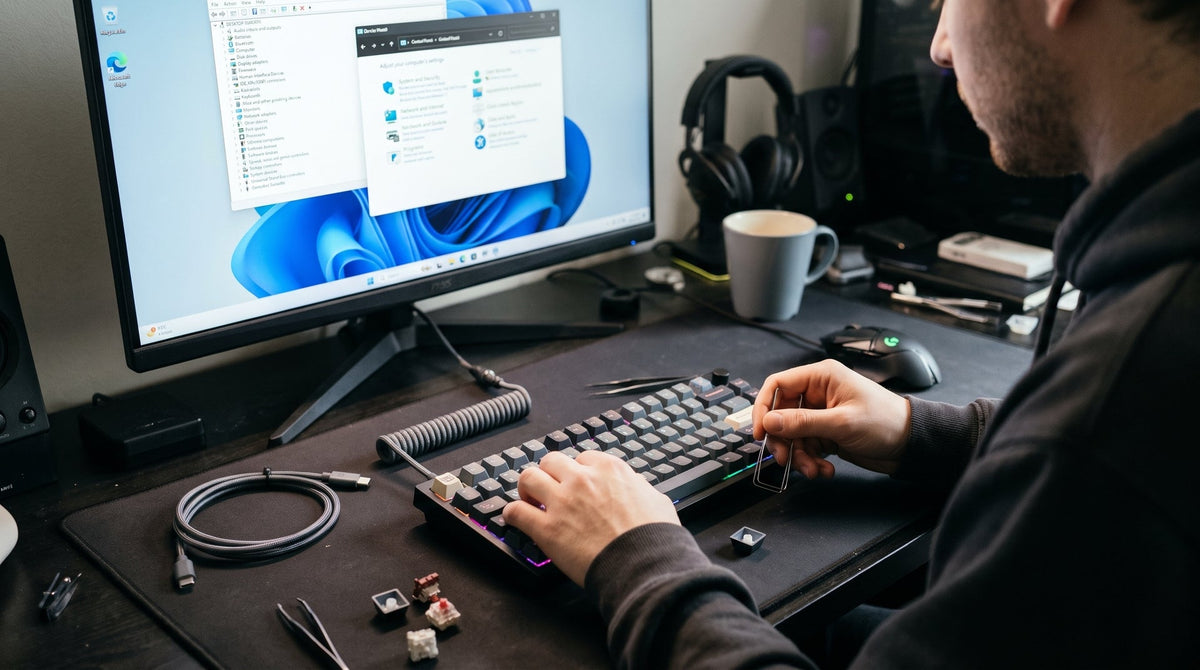
- Right-click the Start Menu and select Device Manager.
- Scroll to the bottom and expand Universal Serial Bus controllers.
- Right-click USB Root Hub (check each one if there are multiple) > Properties.
- Open the Power Management tab.
- Uncheck “Allow the computer to turn off this device to save power” and hit OK.
5. Check Your Connection: Bluetooth vs. 2.4GHz vs. Wired
Not all wireless connections are built equal. A common mistake is buying a high-end tri-mode keyboard and running it over standard Bluetooth for fast-paced gaming or 120+ WPM typing sprints.
| Connection Type | Real-World Polling Rate | Typical Latency | Best Suited For |
| Standard Bluetooth 5.0/5.1 | 125 Hz – 133 Hz | 15 ms – 30 ms+ | Casual office work, tablets |
| Proprietary 2.4GHz RF | 1,000 Hz | 1 ms – 3 ms | Competitive gaming, daily driving |
| High-Speed Wired (USB-C) | 1,000 Hz – 8,000 Hz | < 1 ms | Pro gaming, rhythm games, zero-jitter typing |
If you demand sub-millisecond precision, plug in a dedicated shielded cable. If you prefer a clean desk aesthetic without sacrificing latency, pick up one of our custom braided coiled USB-C cables to keep latency flat at under 1 millisecond.
6. Adjust Debounce Time in Your Keyboard Firmware
If you use a custom mechanical keyboard running QMK, VIA, or proprietary brand software (like Keychron, Wooting, or Razer), your delay might be programmed into the PCB itself.
Mechanical switches use metal leaves that physically bounce against each other when pressed. To avoid registering multiple phantom presses (switch chattering), keyboard controllers use a debounce algorithm that waits a predetermined duration before confirming the input.
- Default factory debounce is often set conservatively to 10ms – 15ms.
- In your keyboard’s configuration software, try lowering debounce time to 2ms – 5ms or switching to an "Eager PR" (Eager Per-Row) algorithm.
- Note: If you set debounce too low and your switches are aged, you might notice double-typing. If that happens, bump it up by 1ms increments until stable.
If your switches are mechanically worn and require high debounce just to prevent chattering, it may be time to swap them out. Check our hot-swappable mechanical switch collection to upgrade to optical or factory-lubed linear switches that naturally eliminate bounce noise.
7. Clean Reinstall Generic HID Keyboard Drivers
Corrupted or stacked HID (Human Interface Device) drivers from old peripherals often cause input buffer jams.
- Open Device Manager and expand the Keyboards section.
- You will likely see multiple entries labeled HID Keyboard Device.
- Right-click each entry and select Uninstall device. (Your keyboard may stop responding during this process—use your mouse to complete the uninstalls).
- Unplug your keyboard cable or wireless dongle.
- Restart your computer.
- Reconnect the keyboard. Windows will cleanly redetect the hardware and reinstall fresh, conflict-free drivers.
8. Is It Actually Display Lag, Not Keyboard Delay?
In about 15% of the support tickets we review, the keyboard isn't lagging at all—the monitor output is.
If you are gaming or working on a high-resolution display with heavy GPU load:
- V-Sync in games: Triple-buffered V-Sync can introduce up to 40–60ms of visual latency, making every keystroke feel like moving through molasses. Disable V-Sync in-game and use G-Sync / FreeSync with an FPS cap instead.
- Display Scaling: Windows 150% or 200% scaling on 4K TVs or uncalibrated monitors can cause Desktop Window Manager (DWM) frame presentation latency.
To verify, record your fingers and monitor at 120fps or 240fps on your smartphone. If the on-screen character reacts several frames after your finger bottom-outs, compare it against mouse clicks. If both lag equally, you have a display pipeline bottleneck.
9. Check for Physical Switch Contamination
Dust bunnies, dried coffee droplets, or pet hair trapped inside a mechanical switch housing can interfere with the physical contact leaves. When this happens, the switch fails to complete the electrical circuit until you press down with excessive bottom-out force.
- Pull off the keycap using a wire keycap puller.
- Depress the switch stem and blow compressed air directly into the housing.
-
For hot-swappable boards, pull the suspect switch and swap it with a rarely used key (like
Scroll LockorPause). If the delay follows the switch, you have a bad leaf or bent pin.
Quick Diagnostic Recap
Ready for zero-latency typing? If your current keyboard relies on outdated Bluetooth or degraded membrane contacts, no software tweak can completely eliminate physical latency. Explore our lineup of pro-grade hot-swappable mechanical keyboards—engineered with 8,000Hz polling rates, hot-swap PCB sockets, and instant 2.4GHz wireless response.
Frequently Asked Questions
Why does my keyboard only lag while gaming? Keyboard lag isolated to gaming usually stems from 100% CPU utilization (leaving no processing threads for USB polling) or heavy input buffering from GPU V-Sync. Cap your in-game frame rate slightly below your monitor’s refresh rate and close CPU-heavy background tasks like browser tabs and recording software.
Can low system RAM cause typing delay? Yes. When your system runs out of physical RAM, Windows offloads memory chunks to your hard drive or SSD (the pagefile). If the system is thrashing memory pages while you type, the Windows input buffer stalls, causing keystrokes to queue up and dump all at once.
Does a 1,000Hz keyboard actually feel faster than 125Hz? Yes, noticeably so in fast typing and gaming. A 125Hz keyboard reports to your PC once every 8 milliseconds. A 1,000Hz keyboard reports every 1 millisecond. Combined with low debounce firmware, a high-polling board provides a crisp, instantaneous physical response.

コメントを書く
このサイトはhCaptchaによって保護されており、hCaptchaプライバシーポリシーおよび利用規約が適用されます。