



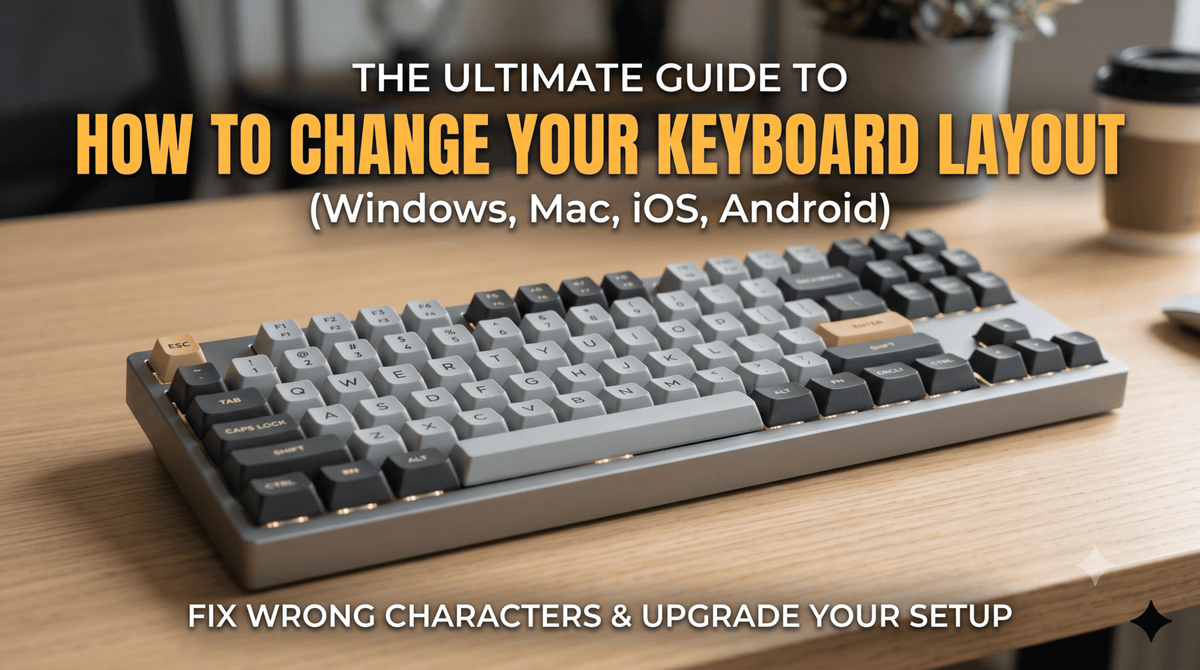
Switching up your keyboard layout is one of those things that feels like it should be totally obvious—until you actually try to find the setting. Whether you’re learning a new language, trying out a more ergonomic layout like Dvorak, or your keys are just suddenly typing the wrong symbols (looking at you, @ and "), changing your layout is a quick fix.
Here is a straightforward, fluff-free guide to changing your keyboard layout on Windows, Mac, iOS, and Android.
How to Change Your Keyboard Layout: A Step-by-Step Guide
1. Windows 11 & Windows 10
Windows makes it pretty easy to manage multiple languages and layouts, though the settings menu can sometimes feel like a maze.
-
Open Settings: Press
Win + Ion your keyboard. - Navigate to Language: Click on Time & language, then select Language & region (or Region & language on older Windows 10 versions).
-
Add a Language/Layout: * If you need a completely new language, click Add a language.
- If you just want a different layout for your current language (e.g., switching from US QWERTY to United Kingdom QWERTY), click the three dots (...) next to your language and select Language options. Scroll down to Keyboards and click Add a keyboard.
-
The Quick Switch Shortcut: Once you have more than one layout installed, you can instantly cycle through them by pressing
Windows Key + Spacebar.
2. macOS (MacBook & iMac)
Apple keeps things centralized under System Settings. If you're a multilingual writer or a coder who prefers a specific layout, here is where to go:
- Open Settings: Click the Apple logo in the top-left corner and choose System Settings (or System Preferences on older macOS versions).
- Find Keyboard: Scroll down the left sidebar and click Keyboard.
- Text Input: Look for the Input Sources section and click Edit....
-
Add Your Layout: Click the
+(plus) icon in the bottom left, select your language, choose your preferred layout from the list, and click Add. -
The Quick Switch Shortcut: Check the box that says "Show Input menu in menu bar." This puts a little flag or icon at the top of your screen for easy switching. Alternatively, you can use
Fn + ForControl + Spacebardepending on your macOS settings.
3. iPhone & iPad (iOS)
If you are using a physical Bluetooth keyboard with your iPad, or just want to change your on-screen thumb-typing setup, iOS keeps it simple.
- Go to Settings > General > Keyboard.
- Tap Keyboards at the very top, then tap Add New Keyboard....
- Select your language. If you want to change the specific layout style (like QWERTY to AZERTY), tap into the language after adding it and select your preference.
4. Android Devices
Note: Because Android skins vary by manufacturer (Samsung, Google, OnePlus), these steps might look a tiny bit different on your phone.
- Go to Settings > System (or General Management on Samsung).
- Tap Languages & input > On-screen keyboard (or Virtual keyboard).
- Select your active keyboard (usually Gboard or Samsung Keyboard).
- Tap Languages, select your language, and swipe through the visual layout options at the top to pick your preferred style.
Why is My Keyboard Typing the Wrong Characters?
If you didn't intentionally change your settings but your keyboard is suddenly acting possessed, you likely hit a accidental shortcut.
The most common culprit is pressing Shift + Alt or Windows Key + Spacebar by mistake. This happens all the time during intense gaming sessions or fast typing. Pressing the shortcut again usually toggles it right back to normal.
Level Up Your Setup: Mechanical & Custom Keyboards
Changing your software layout is great, but if you're looking for ultimate typing comfort or productivity, the hardware matters just as much.
Many modern mechanical keyboards feature hot-swappable switches and customizable keymaps, allowing you to reprogram keys at a hardware level. If you are ready to upgrade your desk setup for better ergonomics and a more satisfying typing experience, explore our curated collection of high-performance mechanical keyboards to find the perfect fit for your workflow.
Quick Layout Comparison
| Layout Name | Best Used For | Fun Fact |
| QWERTY | Standard everyday typing | Designed in the 1870s to prevent typewriter jams. |
| AZERTY | French-speaking regions | Swaps several keys around to accommodate French grammar. |
| Dvorak | Ergonomics & speed | Reduces finger movement by placing common vowels on the home row. |
Frequently Asked Questions (FAQ)
1. How do I switch back to my default keyboard layout quickly?
The fastest way is to use a keyboard shortcut. On Windows, press Windows Key + Spacebar. On a Mac, press Control + Spacebar. These shortcuts instantly cycle through all the keyboard layouts you have installed.
2. Why does my keyboard change layouts on its own?
You are likely hitting an accidental shortcut while typing fast or gaming. On Windows, pressing Shift + Alt or Windows Key + Spacebar switches layouts. If this happens frequently, you can disable these shortcuts in your system's advanced language settings.
3. Can I change the layout of a physical external keyboard?
Yes. When you change the keyboard layout in your computer or phone settings, it applies to any external keyboard (USB or Bluetooth) plugged into that device. If you want keys to physically match what you type, you may need to swap the keycaps on your keyboard.
4. What is the difference between QWERTY and Dvorak?
QWERTY is the standard layout found on most devices, originally designed to keep old typewriters from jamming. Dvorak is an alternative layout designed for comfort and speed; it places the most frequently used letters (like vowels) on the middle row to reduce finger stretching.
5. Will changing my keyboard layout change my system language?
No. Changing your keyboard layout only changes what happens when you press the keys. Your menus, apps, and system notifications will stay in your preferred language.



แสดงความคิดเห็น
เว็บไซต์นี้ได้รับการคุ้มครองโดย hCaptcha และมีการนำนโยบายความเป็นส่วนตัวของ hCaptcha และข้อกำหนดในการใช้บริการมาใช้